1. Creation tier
Record whether the song was created while you were on a paid Suno tier. Do not treat a later subscription as automatic retroactive permission for a free-tier song.
Suno to Spotify · rights-first release flow
For a Suno output, the decisive facts are the tier in force when the song was made, whether you obtained a permitted download, whether it is a Remix, and whether every human contribution is cleared. Spotify delivery is a separate distributor-and-store step, not proof that the underlying output is commercially cleared.
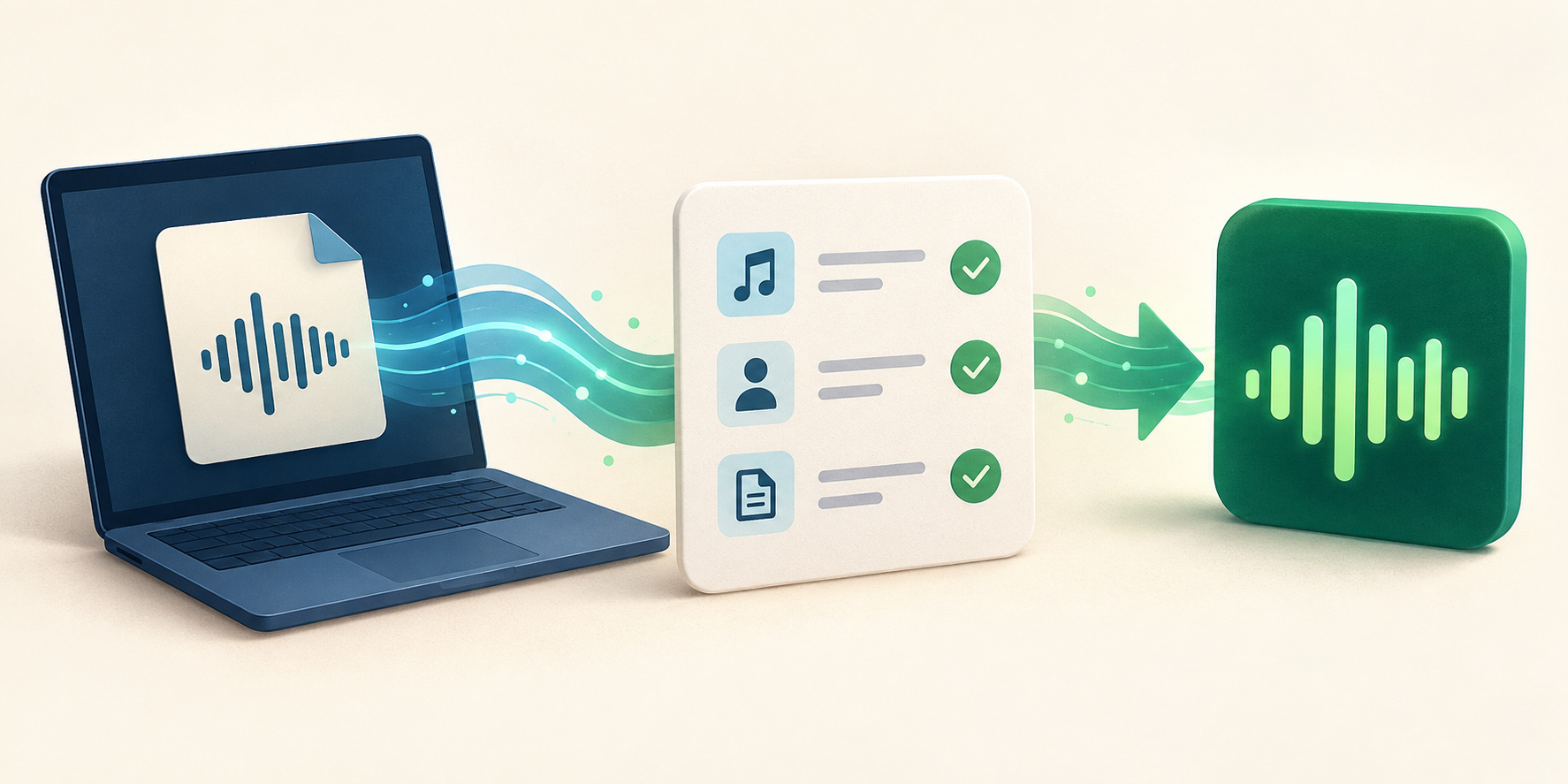
Start with the track’s creation and download history, not the upload form. Suno says free or Basic-tier outputs are for personal, non-commercial use. For paid users, commercial use is tied to a permitted download and still remains subject to the terms. A Remix involving another user has a separate non-commercial restriction. Once the rights path is clear, use a distributor’s upload flow and select Spotify as a destination.
Release gate
Record whether the song was created while you were on a paid Suno tier. Do not treat a later subscription as automatic retroactive permission for a free-tier song.
Keep the exported file and the date you downloaded it through Suno’s approved download flow. Suno’s terms link permitted commercial use to an eligible download.
Do not send a shared-user Remix into a commercial release flow. Suno’s terms give Remixes a distinct non-commercial restriction.
Clear any lyrics, voice, samples, cover art, or third-party materials that you added. A generator plan does not clear work you do not have rights to use.
Six-step upload flow
Two questions, not one
Suno’s commercial-use rights address your relationship with Suno. A distributor and each streaming service apply their own release rules. DistroKid, for example, requires you to own all distribution rights, bars impersonation and infringement, and says services may reject or remove releases that do not meet their guidelines.
Also keep commercial-use rights separate from copyright protection. Suno states that commercial-use rights do not guarantee copyright qualification; that depends on the relevant jurisdiction.
The image represents a release workflow only. It contains no platform logo, rule, or numeric claim.
Checked source pages
Source pages checked 2026-10-06 (UTC). Rules can change. This is operational guidance, not legal advice.